Set up muCommander
muCommander is a cross-platform file manager. These steps show how to configure and alter the tool to make it a better experience on macOS. The following steps will change the UI similar to the following:
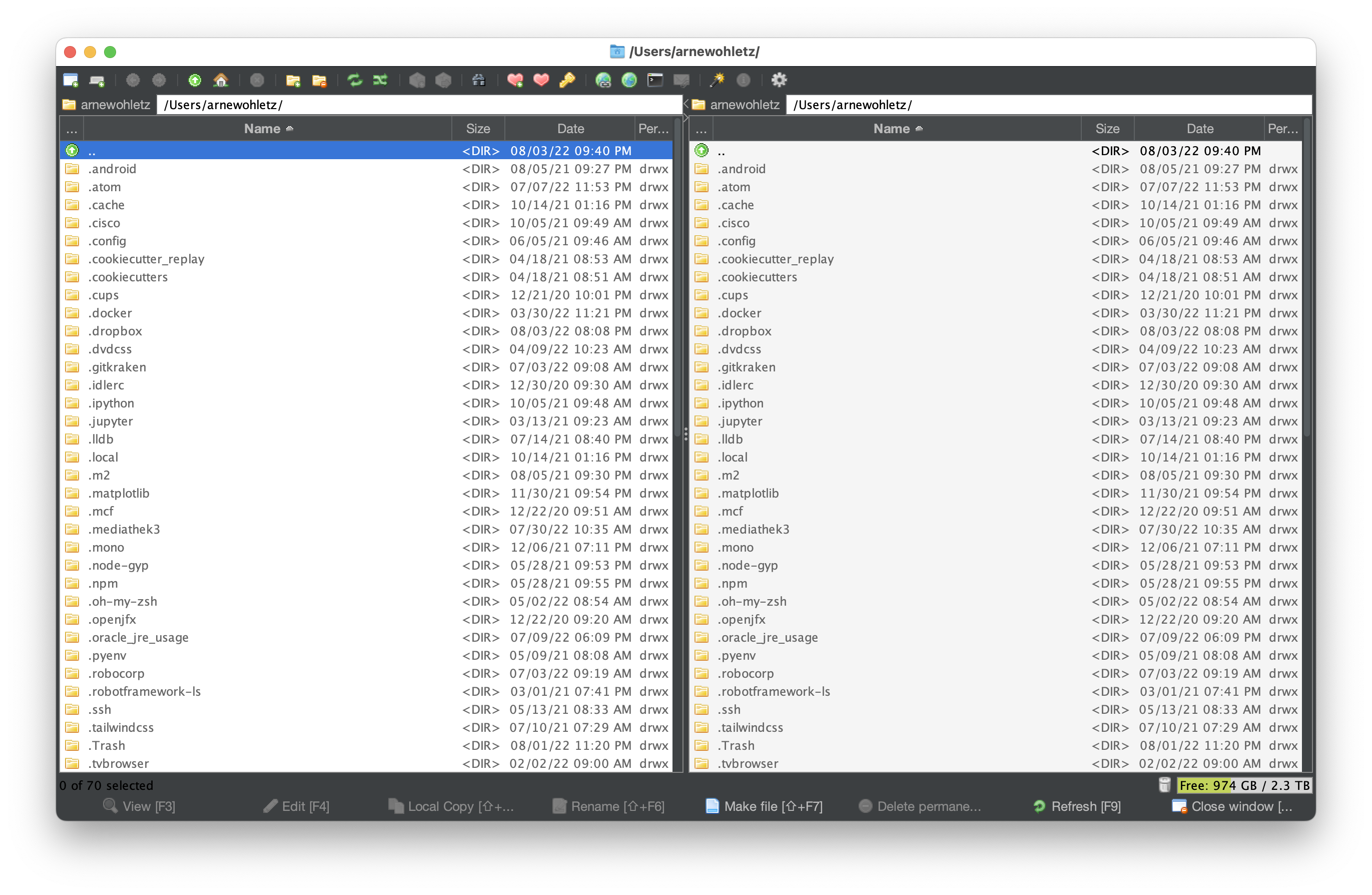
|
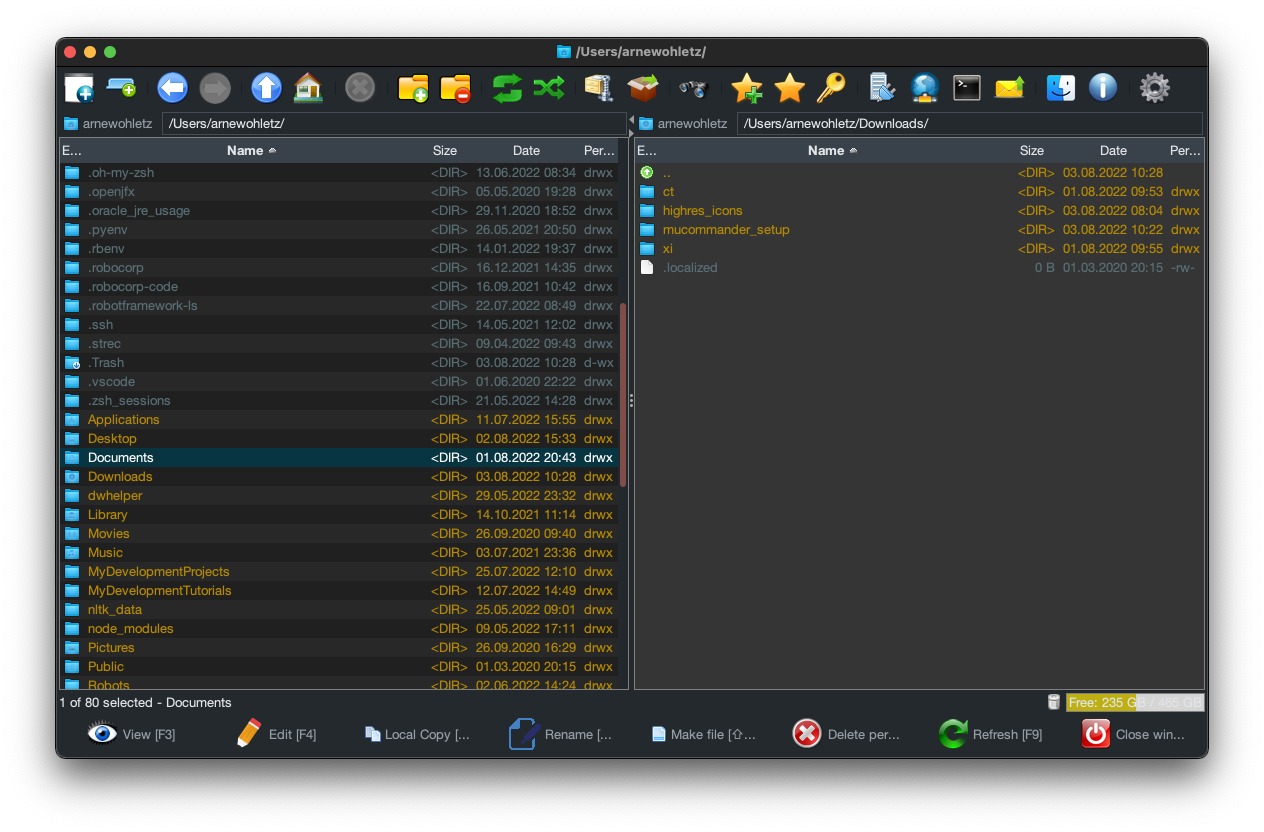
|
Add high-res icons
muCommander currently only has very low resolution icons, which look very pixelated, especially when increasing the icon size in the preferences. A fork provides higher resolution icons, which can replace the low-res icons:
Extract
highres_icons.zipinto~/Downloads.Execute this command (adapt the version number, here 1.0.1):
macOS
$ jar -uf /Applications/muCommander.app/Contents/app/app/mucommander-core-1.0.1.jar -C ~/Downloads/highres_icons images/action
Windows
s+$jar -uf “%USERPROFILE%Program FilesmuCommanderappappmucommander-cor-1.0.1.jar -C %USERPROFILE%Downloadshighres_icons imagesaction”
Hint
The jar executable (jar.exe on Windows) is only available in Oracle JDK installations.
(Re)start muCommander.
Add better dark theme
muCommander features a few themes, but the dark themes might to appease everyone. Luckily, additional themes can be imported.
Download latest version of Flatlaf IntelliJ Themes from https://search.maven.org/search?q=a:flatlaf-intellij-themes.
Open muCommander.
Go to .
Under Look & Feel, select Import and select
flatlaf-intellij-themes-<SOME_VERSION>.jar.Select one of the newly added themes from the Look & Feel dropdown selection menu and apply it.
Custom theme settings
The file systems panes can also be altered and those settings can both be exported and imported. These steps apply a custom settings file via import which sets it to a dark tone.
Open muCommander.
Go to .
Under ‘Theme’, select ‘Import’ and select
custom_dark_theme_settings.xml.You may want to do adjustments manually.
Close preferences with OK.
Switch to dark window bar
Note
These steps are not required on Windows.
To get a window bar, which matches the system theme, a new option must be passed when muCommander is launched.
Open
/Applications/muCommander.app/Contents/app/muCommander.cfgwith a text editor.Add this line into the
[JavaOptions]section:java-options=-Dapple.awt.application.appearance=system
Save and close the file, then restart muCommander.
Change default text editor
muCommander comes with its own internal text editor, which offers little to none features, but is only useful for simplest text editing. You might want to set a different editor as default. Here, Visual Studio Code is set as the default, but any other editor can be used (just make sure it can be launched over the command line).
Open
~/Library/Preferences/muCommander/commands.xml(or%USERPROFILE%\.mucommander\.commands.xml).Hint
If the file is not available (is only created, when first deviation from default is set), create it, pasting in this content:
<?xml version="1.0" encoding="UTF-8"?>
<commands>

</commands>
Change the value of the
editalias to or add it between the commands tagsmacOS
<command alias="edit" value="/usr/local/bin/code $f" type="system"/>
Windows
<command alias="edit" value="C:\\Program Files\\Microsoft VS Code\\Code.exe $f" type="system"/>
Important
It is mandatory to use double backslashes for Windows paths.
Hint
Add custom Open-With options
In case you like to open a file in different editors, you may specify those as Open With options.
Add them to the
commands.xmlfile as well. Example:
<command alias="Notepad++" value="notepad++ $f"/>
<command alias="Notepad" value="C:\\Windows\\notepad.exe $f"/>
Reopen muCommander
Select a file, right click and choose Open with… and your desired option.
If muCommander reports an error, try stating the full path to the editor executable.
Save and close the file, then restart muCommander. Try editing a text file (F4).